How to Step-Up Multi-Factor Authentication
Multi-Factor Authentication (MFA) adds an extra verification step when you perform a sensitive action. Even if you're already logged in, critical changes require a one-time passcode.
When MFA is enabled, it applies to:
- Log In
- Change Password
More actions will be added later.
Before You Start
For MFA to work:
- Your workspace MFA policy must be Enabled or Required.
- Enabled: MFA is opt-in. Users can add it for extra security.
- Required: MFA is mandatory. All users must enable at least one method.
- Configure at least one verification method:
- Authenticator App: Use any third-party authenticator app for verification codes.
- Email: Receive codes via email.
If MFA is Disabled, no one can use it.
Tip: Popular authenticator apps include Google Authenticator and Apple Passwords.
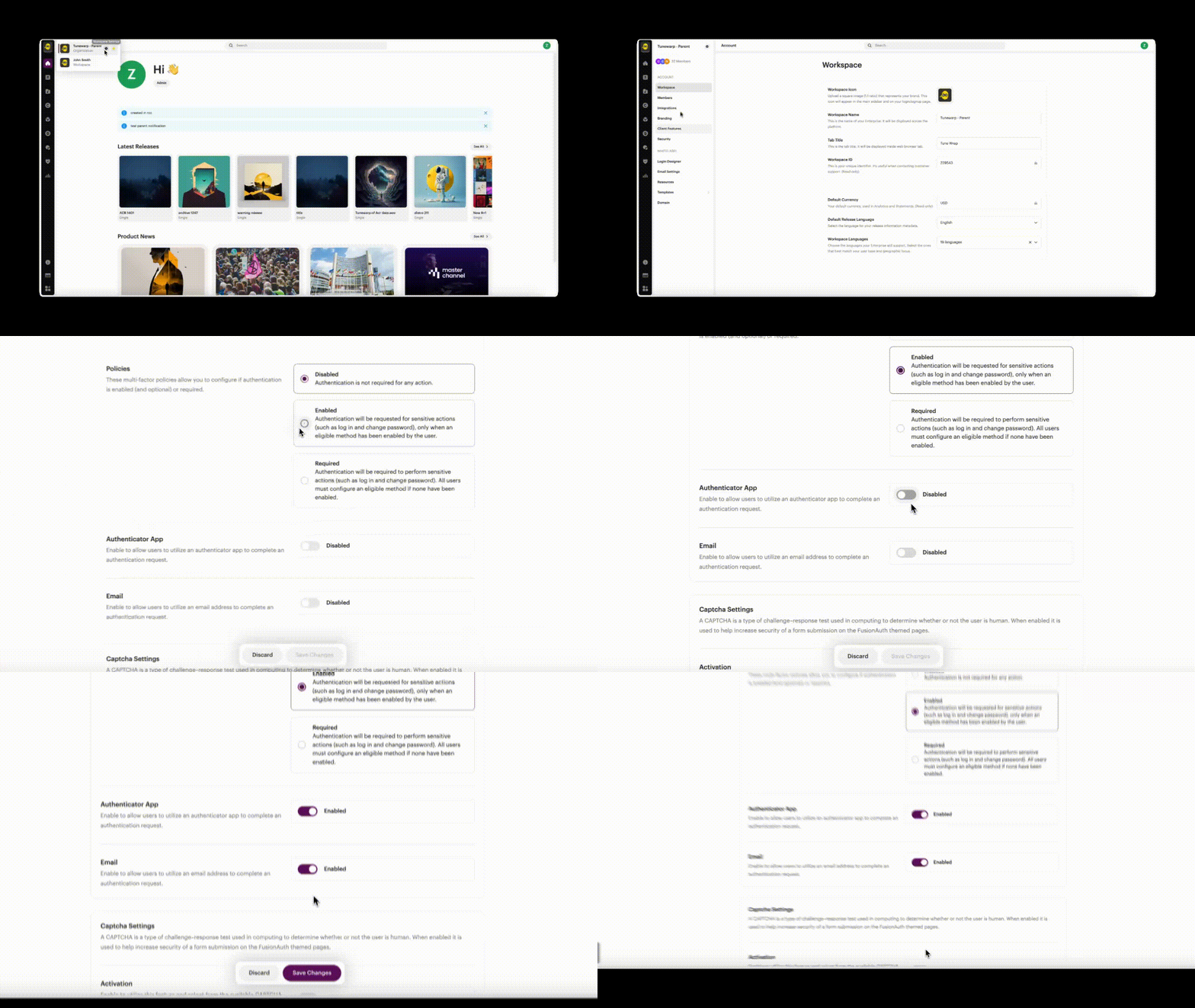
Admin Setup: Configure MFA Policies
- Go to Account Settings → Security
- Under Multi-Factor, choose one:
- Disabled: MFA is not available.
- Enabled: MFA is requested for sensitive actions only if the user opted in.
- Required: MFA is mandatory. Users must enable a method.
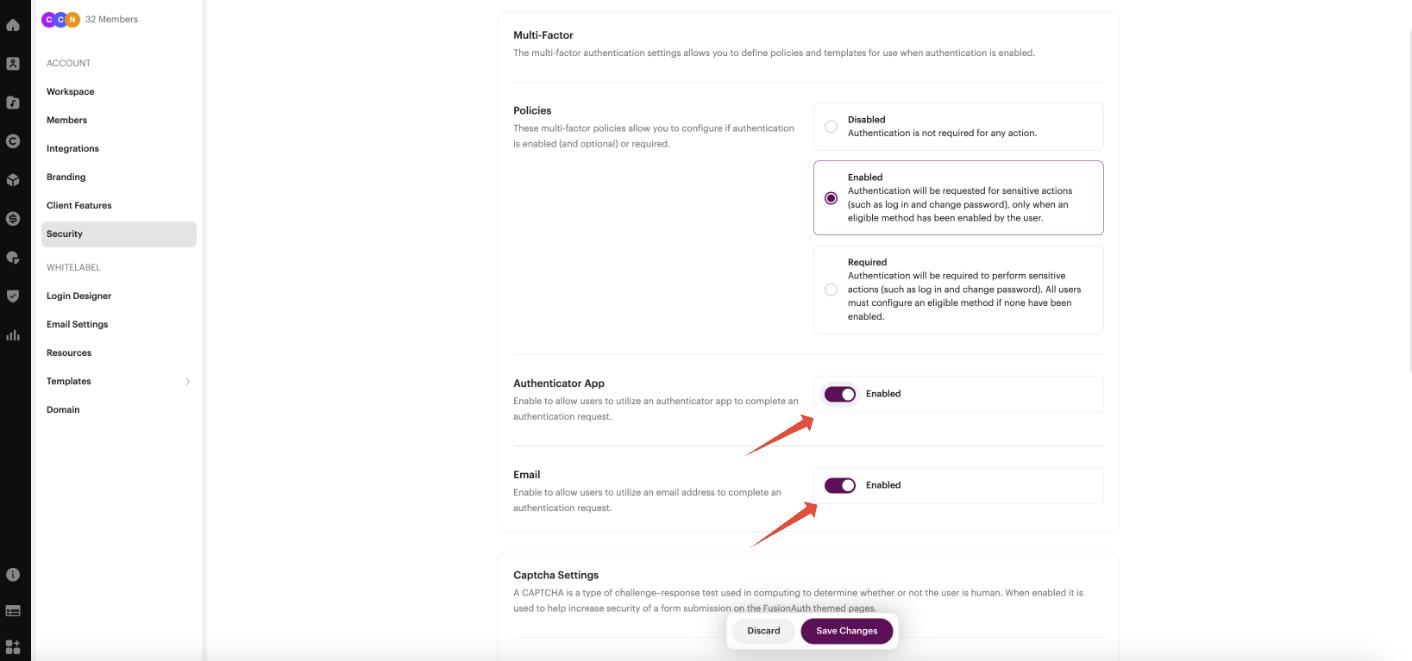
Admin Setup: Enable Verification Methods
In Account Settings → Security, turn on the verification methods you want users to enable:
- Authenticator App: Connect any third-party authenticator app.
- Email: Receive codes via email.
User Account: Enable MFA Method
- Go to User Settings → Security
- Under Your Verification Methods, enable Authenticator App or Email (or both)
- For Authenticator App: Scan the QR code with your authenticator app. Enter the one-time code to confirm.
- For Email: Check your inbox for a one-time code. Enter it to confirm.
- After setup, you'll see 10 recovery codes. Copy and store them securely (e.g., in a password manager). Use these codes to disable a method if you lose access.
- To disable a method, click the 3-dot menu and select Disable. Enter a verification code to confirm.
Tip: Recovery codes are single-use. If you run out, you can't verify your account. Each time you disable and re-enable a method, you get 10 new codes.
User Account: How MFA Works When Changing a Password
- Go to User Settings → Change Password
- Enter your current password and a new password.
- Click Save Changes
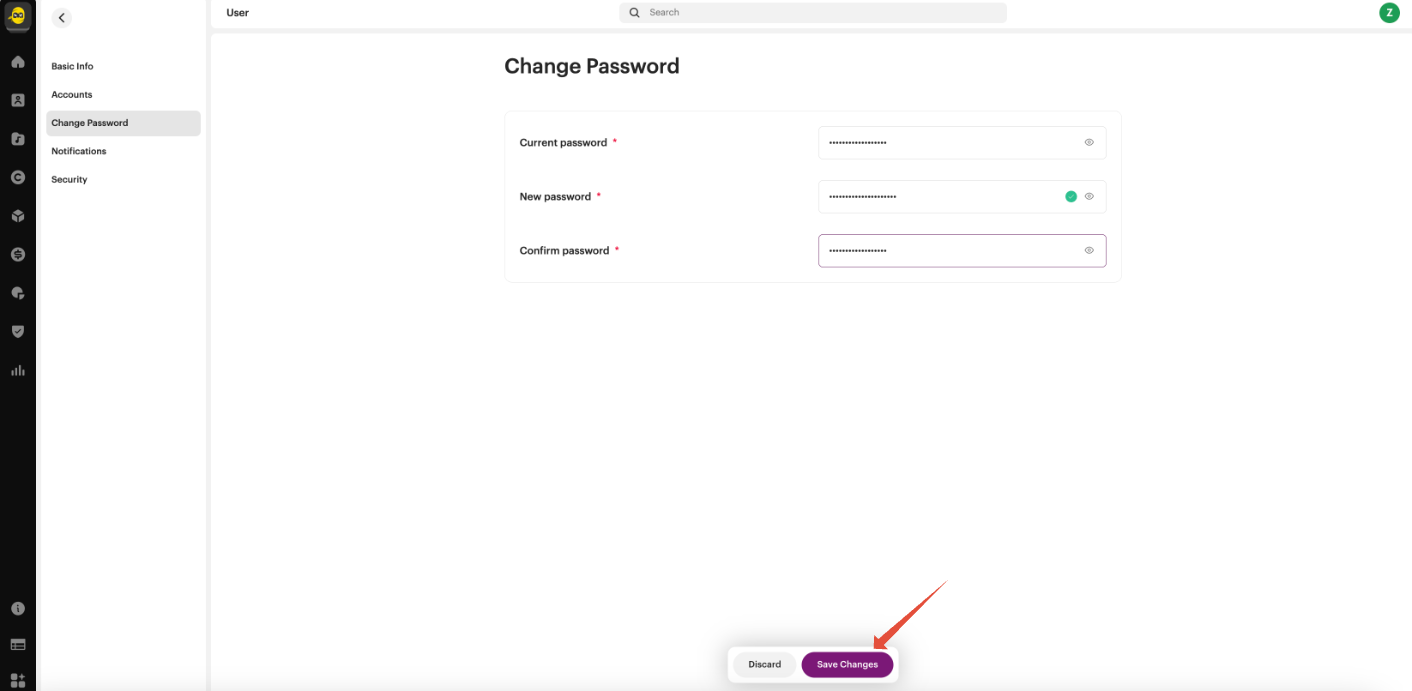
A Verification Required modal will appear.
- If you have 1 method enabled, enter the one-time code from your email or authenticator app.
- If you have 2 methods enabled, choose which method to use.
- Complete verification to finish changing your password.
If verification succeeds, your password updates.
Troubleshooting
I don't see any verification options
This means:
- No verification methods are enabled at the account level, or
- You haven't set up a verification method yet
I only see "Recovery Code"
Recovery codes appear if you've already completed MFA setup and have backup codes. Only enabled methods are shown.
Why am I being asked to verify if I'm already logged in?
MFA protects sensitive actions, even during an active session.