Artist Splits: How Artists Can Create Contracts to Share Royalties with Collaborators
2 min read
Artist Splits lets you create contracts to share royalties with your collaborators directly from your Hitskope account — no email back-and-forth to set up the payees.
How to access Artist Splits
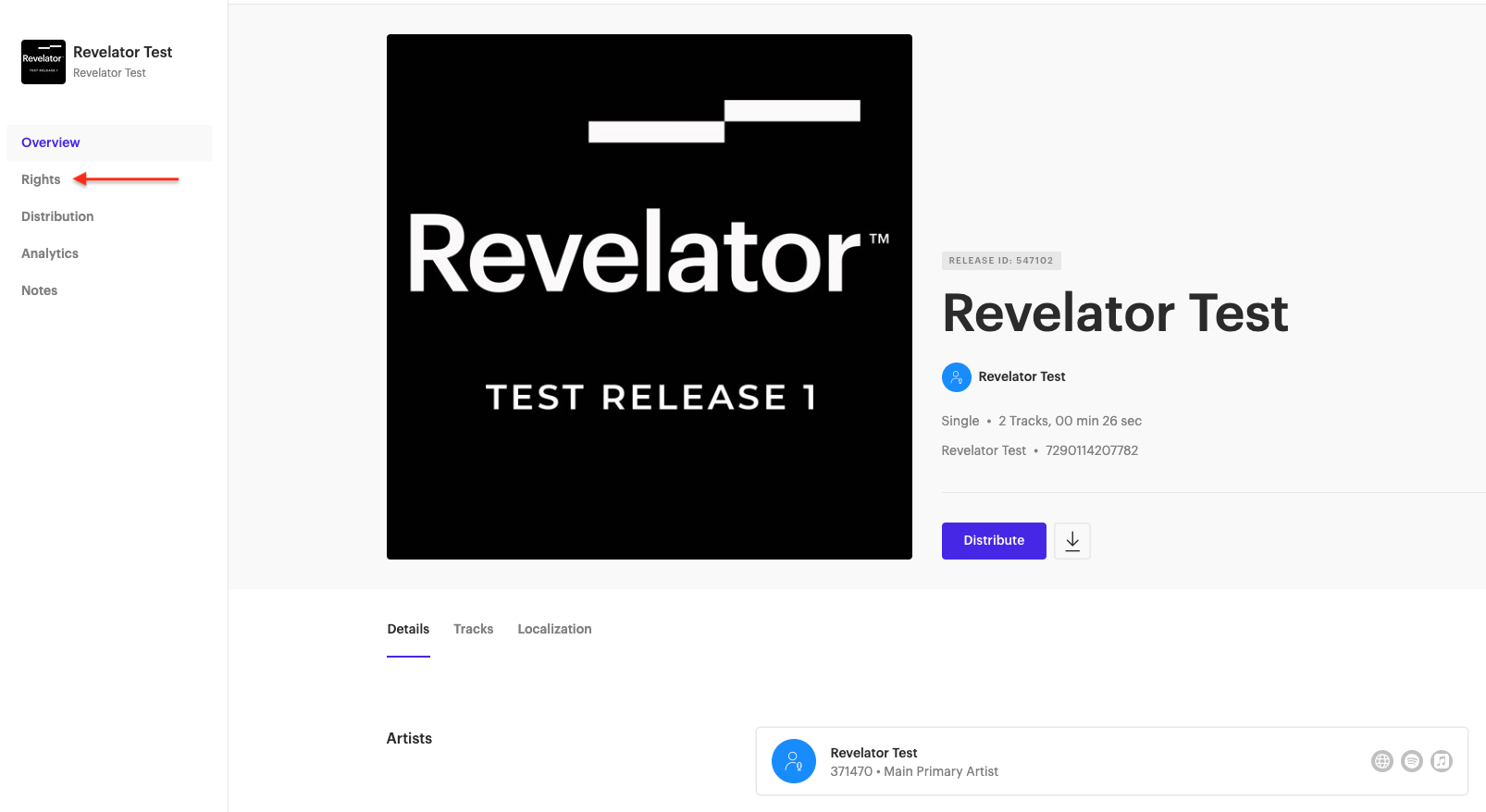
- Splits are located in the Rights section of any music, video, or ringtone release.
- A release must already be distributed before you can create splits — this ensures the track count is locked, so the related contracts stay accurate.
Who can create splits
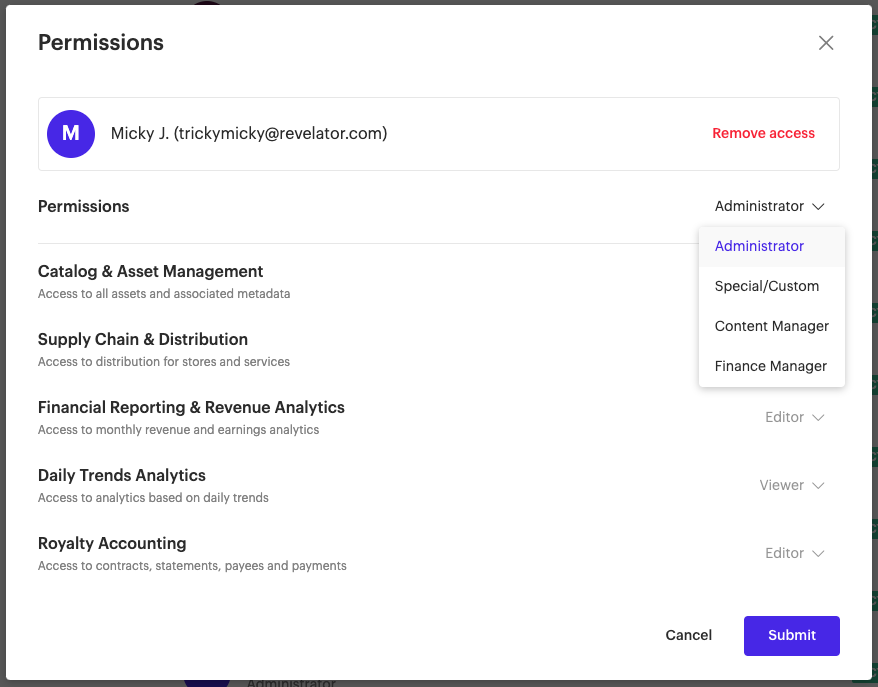
Any user on your account with the Administrator role can create splits.
What Artist Splits create
- Splits create track-level contracts so royalties from any track can be split among different rights holders on every royalty run.
- If you want the same splits across an entire release, set them up on one track and use the "Copy splits from track" option to apply the same splits to every other track.
- When payees and splits differ across tracks of a release, Artist Splits automatically generates the prorated release-level contract needed to handle full-release downloads.
Creating splits — what to expect
- Splits are created in the Rights page of any release you've already distributed.
- For any or all tracks, you'll indicate, per collaborator:
- Payee name
- Payee email address
- Revenue share percentage of the track
- All splits must be entered at once. Once saved, they can't be modified directly — to change a split, contact support@hitskope.com and we'll handle the contract update.
- If a track or release already has a contract attached, the system blocks the split and tells you a contract already exists. Email support and we'll add or modify the splits for you.
- Once splits are saved, new contracts appear in Rights > Contracts with this naming convention:
- Track contract:
[Payee Name - Payee ID] Release Name - Track ISRC - Release contract:
[Payee Name - Payee ID] Release Name
- Track contract:
- Emails go out automatically:
- To you, to confirm the email addresses you entered for your collaborators (a wrong address means the wrong person gets paid).
- To each collaborator you've added, asking them to confirm participation and add their payment information in Tipalti.
- On the next royalty run, your collaborators receive their own statements for their share.
Modifying a splits contract later
- Find any splits contract by searching for the Payee ID (every Payee ID is part of the contract name), or by using the Payee filter in Rights > Contracts.
- The important thing to remember: every track-level splits contract has an associated prorated full-release contract that covers full-release downloads/purchases. If you change a track-level split, the prorated release-level split usually needs to change with it. Email support@hitskope.com — we'll keep both sides in sync.