YouTube Channel Royalties & Reporting
Welcome to YouTube Channel Royalties & Reporting
Tracking YouTube royalties takes time. Time you could spend on the music.
Hitskope gives you a faster way to manage your YouTube channels, earnings, and payouts.
With YouTube Royalties & Reporting, you can:
✅ Import channels and videos automatically
✅ Match revenue in seconds
✅ Distribute payouts with full transparency
Whether you're running a multi-channel network or setting up contracts for specific channels, Hitskope's tools help you take control.
This guide walks through importing channels, setting up revenue contracts, and tracking royalties.
If You're Using Hitskope's MCN
How to Use the Import Feature
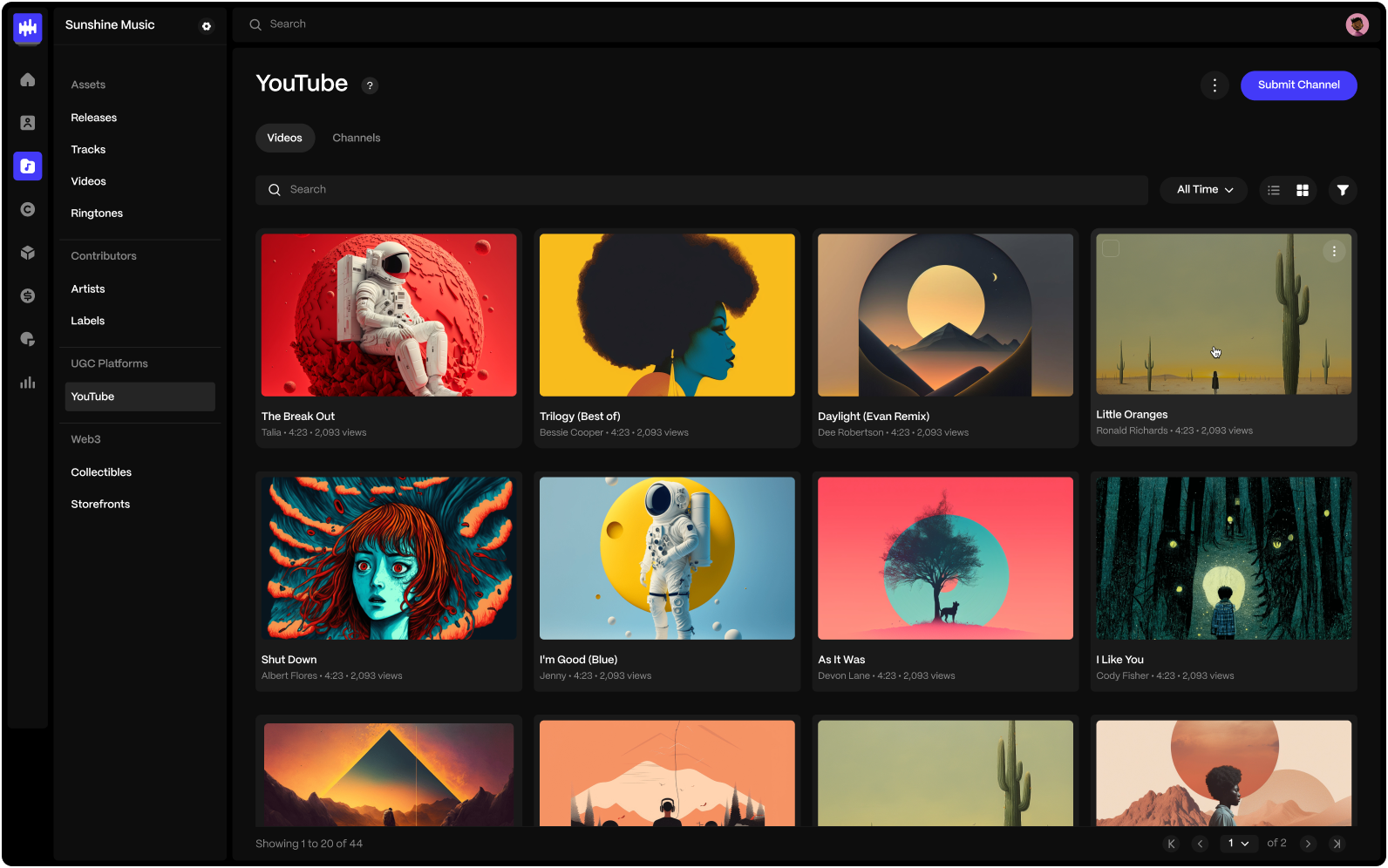
Importing Channels and Videos
- Navigate to Catalog → YouTube.
- Verify that channels and videos managed under Hitskope's MCN have been imported and update daily.
- Open a Channel or Video to view the imported data.
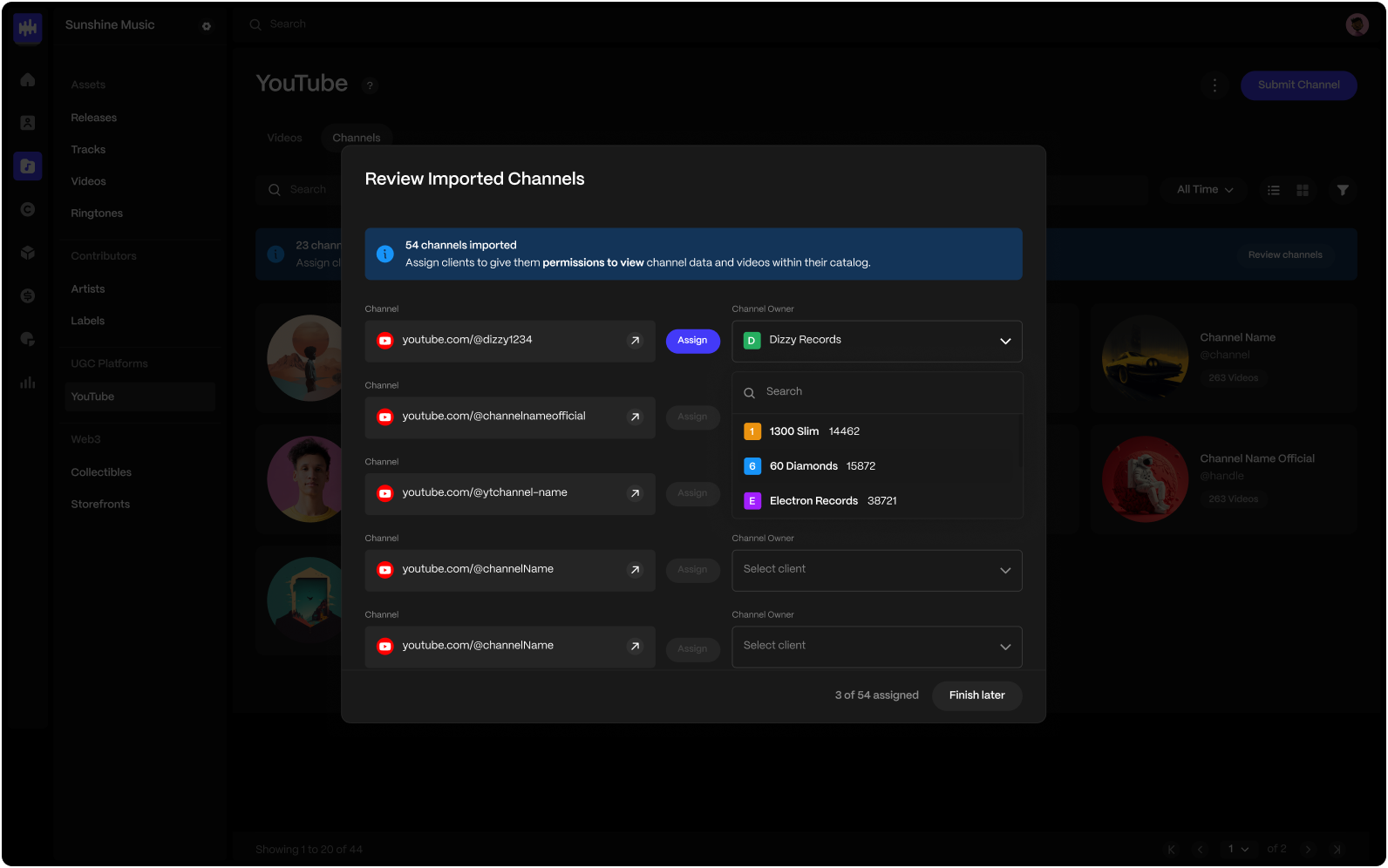
Assigning Channels to Artist Accounts (Optional)
-
Go to Catalog → YouTube and open the Channels tab.
-
A banner should appear: Review Channels.
-
Click the menu icon and select Assign Channel Owner.
-
Select a client to assign as the channel owner.
ℹ️ Assigning a client as the channel owner gives them permission to view the channel and its videos within their catalog.
-
Confirm the client account can view the channel and its videos in their catalog.
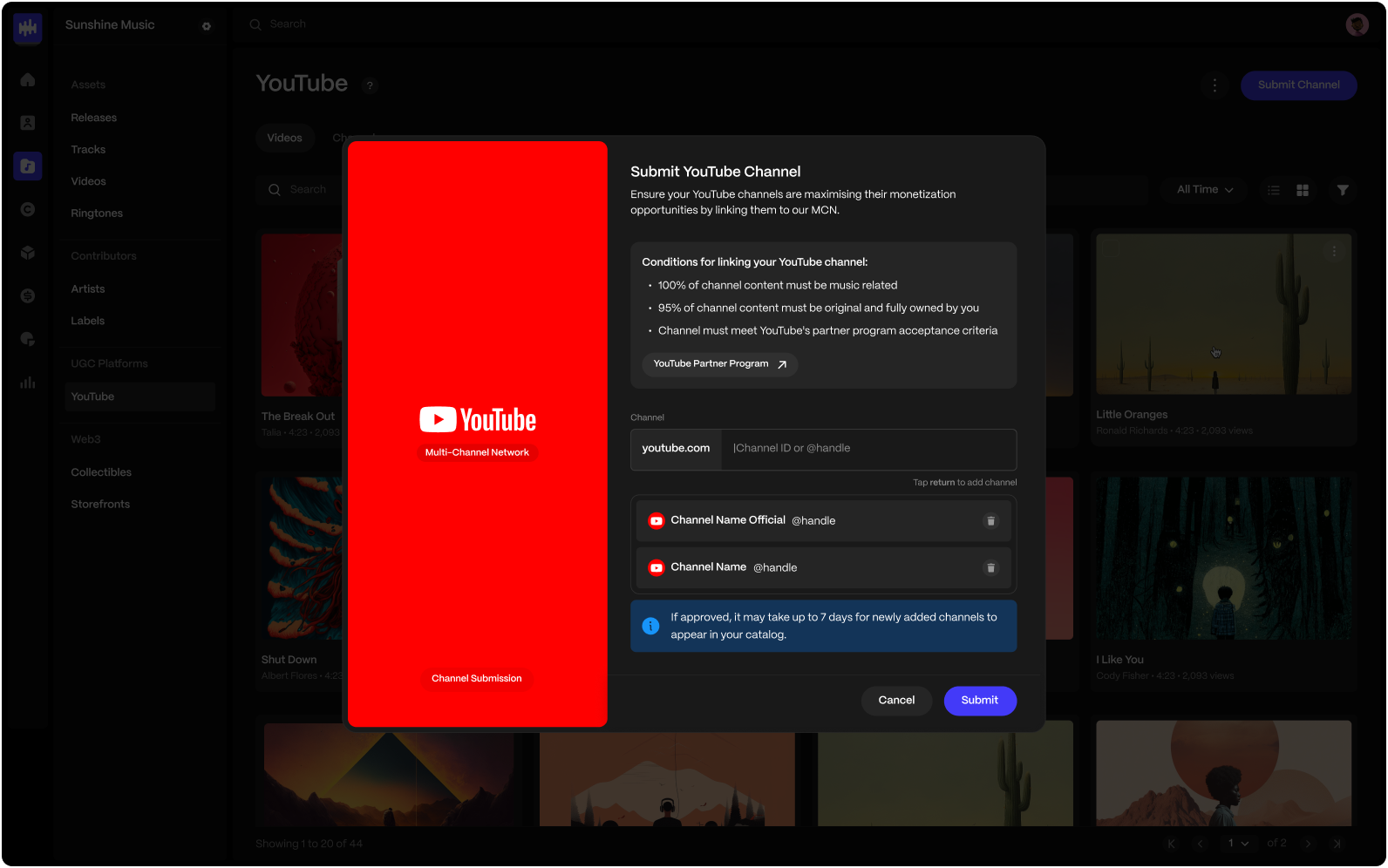
Submitting New Channels
-
Click Submit Channel from Catalog → YouTube.
-
Review the channel eligibility requirements carefully. Channels that don't meet the requirements will not be added to Hitskope's MCN.
-
Copy and paste a channel ID or @handle. You can submit one or more channels at once.
-
Click Submit to submit the channel for review.
ℹ️ If your channel meets the requirements, it may take up to 7 days to appear in your catalog. The channel must accept the invitation to join Hitskope's MCN in YouTube.
-
After the channel is added to Hitskope's MCN in YouTube, it may take 1–2 days for the channel to be imported and added to your catalog.
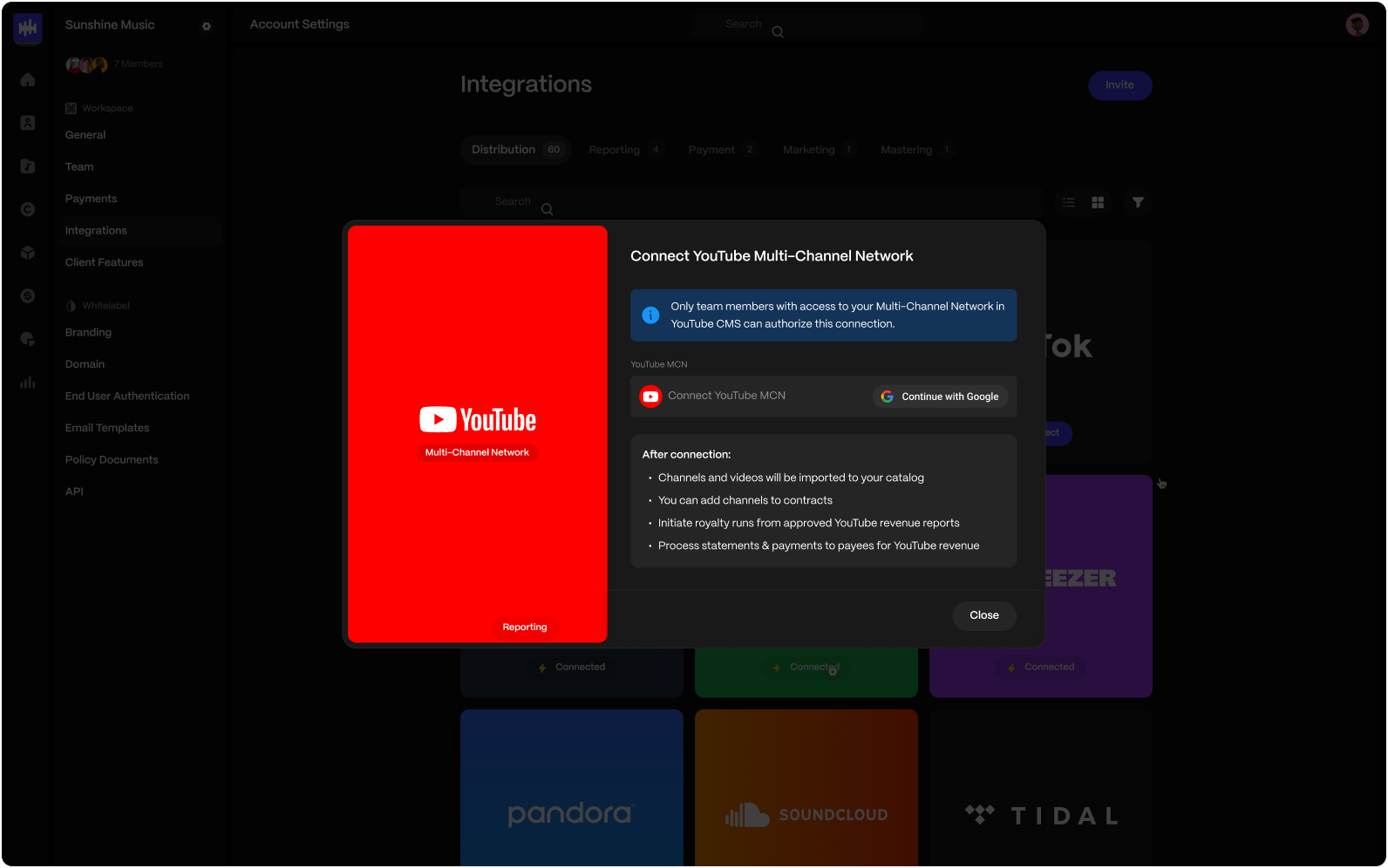
If You're Managing Your Own MCN
Connecting Your Google Account
-
Navigate to Account Settings → Integrations, and open the Reporting tab.
-
Click to connect YouTube: Multi-Channel Network and authenticate using a Google account that has access to your YouTube MCN.
-
After authenticating successfully, Hitskope will begin importing your channels and videos immediately.
-
Open Catalog → YouTube to check whether import has completed and your channels and videos have been imported successfully.
If it does not complete, contact support.
Assigning Channels to Artist Accounts (Optional)
-
Go to Catalog → YouTube and open the Channels tab.
-
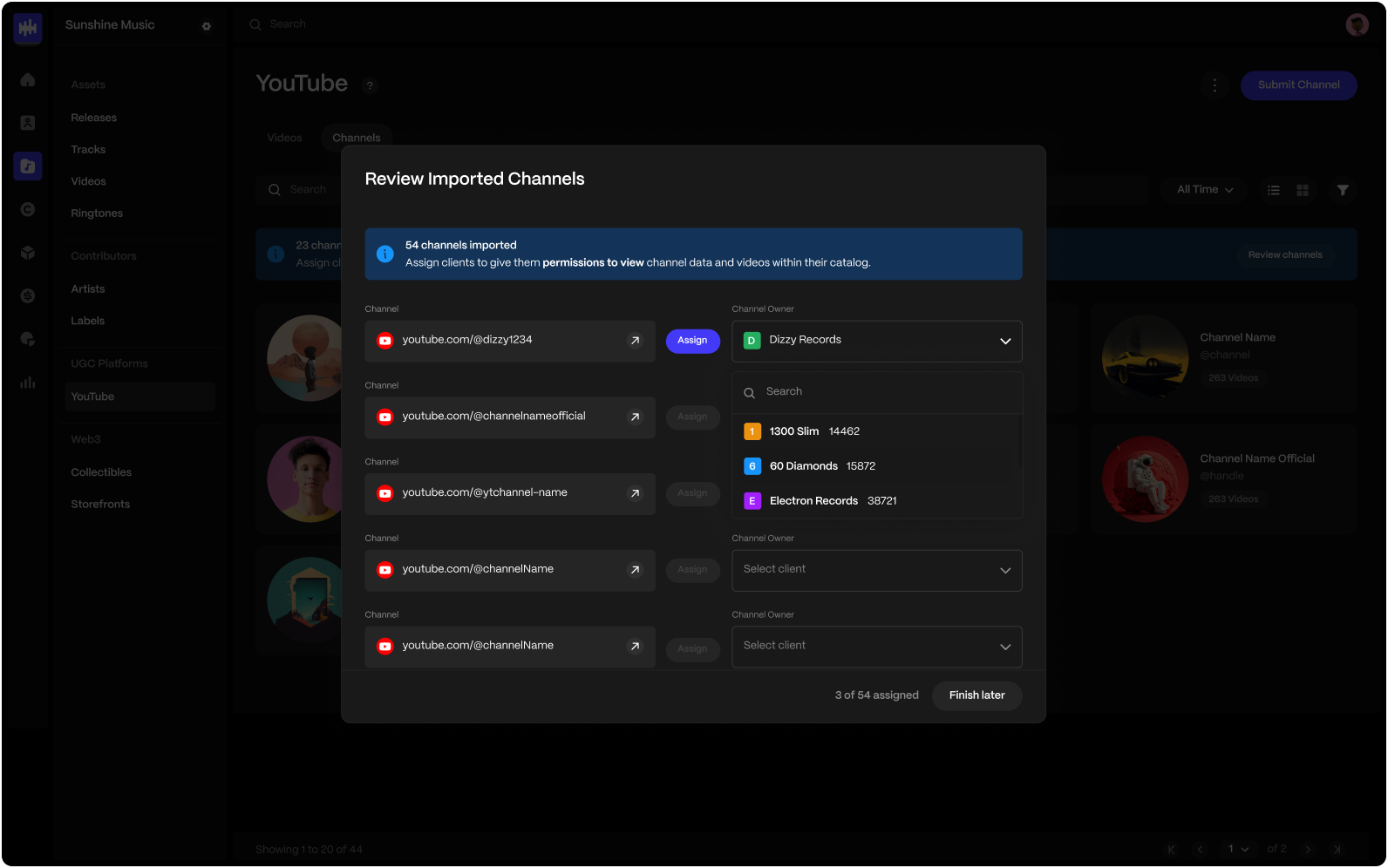
A banner should appear highlighting the number of channels that were imported. Click Review Channels.
-
Select channel owners for each channel you wish to assign a client to, and click Assign.
ℹ️ Assigning a client as the channel owner gives them permission to view the channel and its videos within their catalog.
-
Confirm the client account can view the channel and its videos in their catalog.
-
You can change the channel owner (or assign one) at any time from the channel details page within the options menu.
How to Upload YouTube Revenue Reports
If you run your own YouTube MCN and need channel-level revenue reporting, you must upload the correct reports to avoid processing delays and ensure accurate royalty distribution.
The required reports are:
| Revenue Type | Required Report (v1.1 Only) |
|---|---|
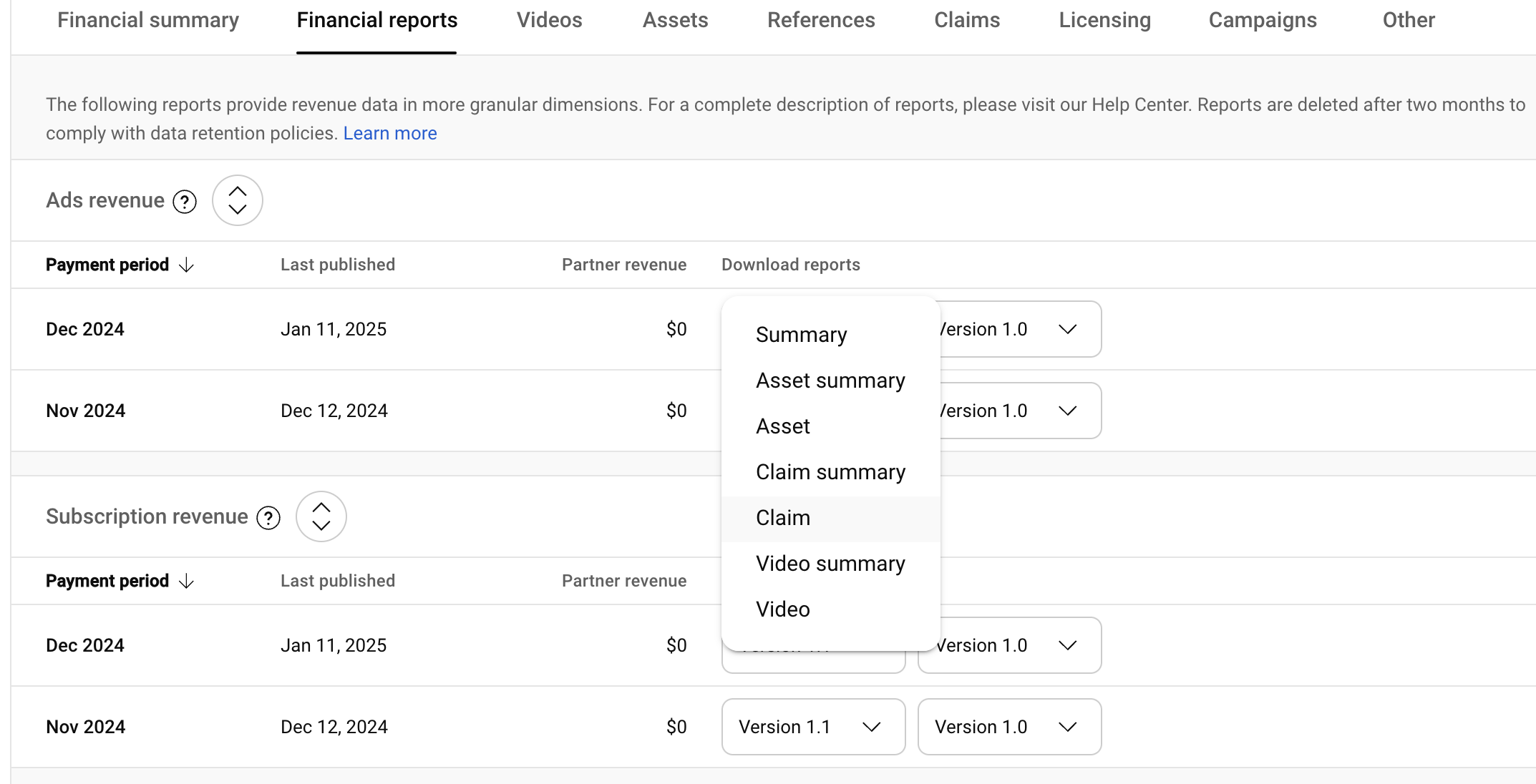
| Ads Revenue | Claim Report v1.1 |
| Subscription Revenue | Video Report v1.1 |
Claim Report v1.1
Video Report v1.1
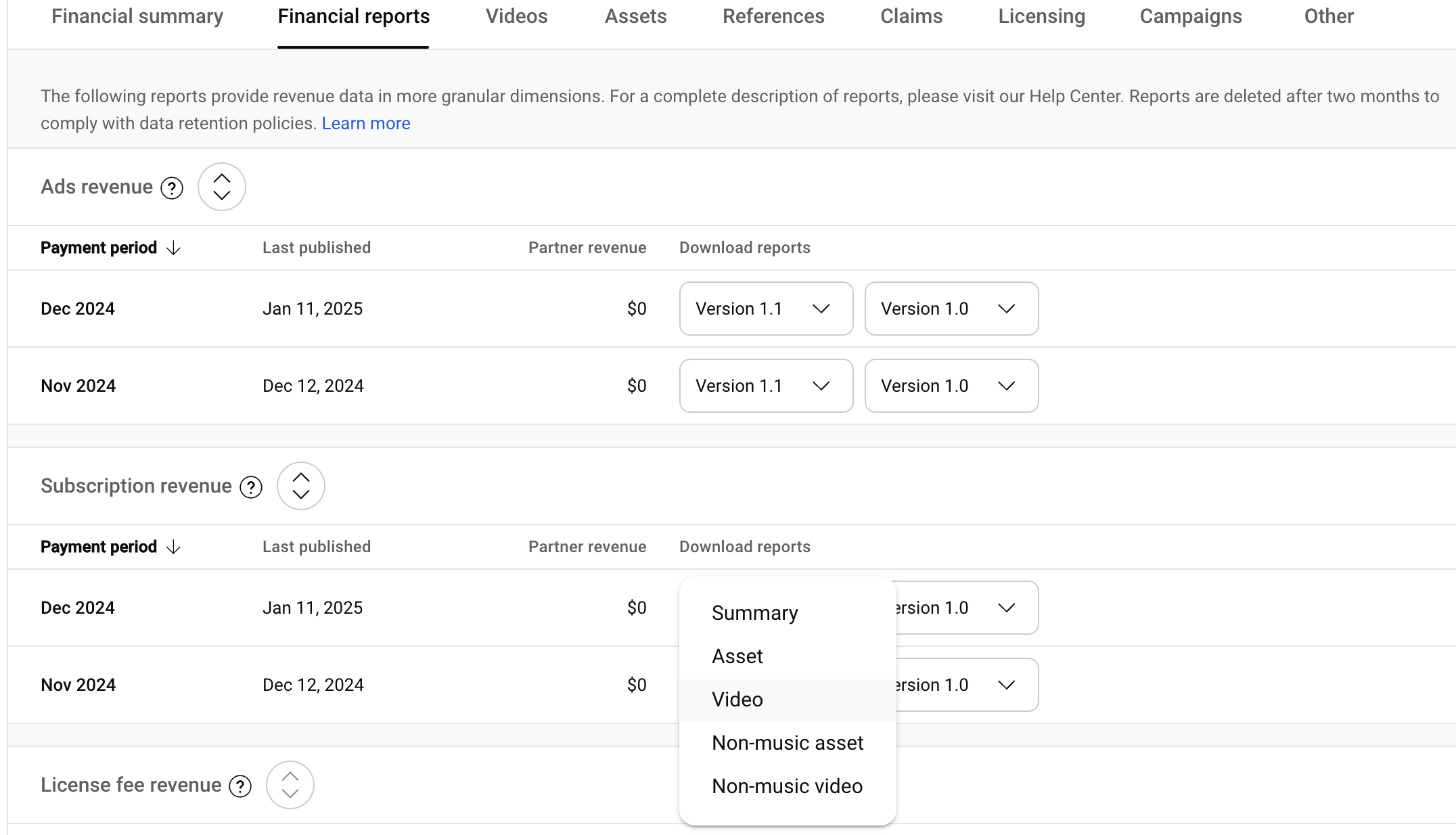
⚠️ Do NOT upload the Asset report. It does not contain the necessary data for accurate channel-level reporting.
Why This Matters
- Uploading the wrong report will cause processing delays and block the queue for other reports.
- MCN channel-level revenue cannot be assigned correctly if the wrong reports are used.
- Clients who upload the Asset report by mistake must reprocess reports manually, delaying royalty payouts.
How to Create Channel-Specific Contracts for Revenue Distribution
Overview
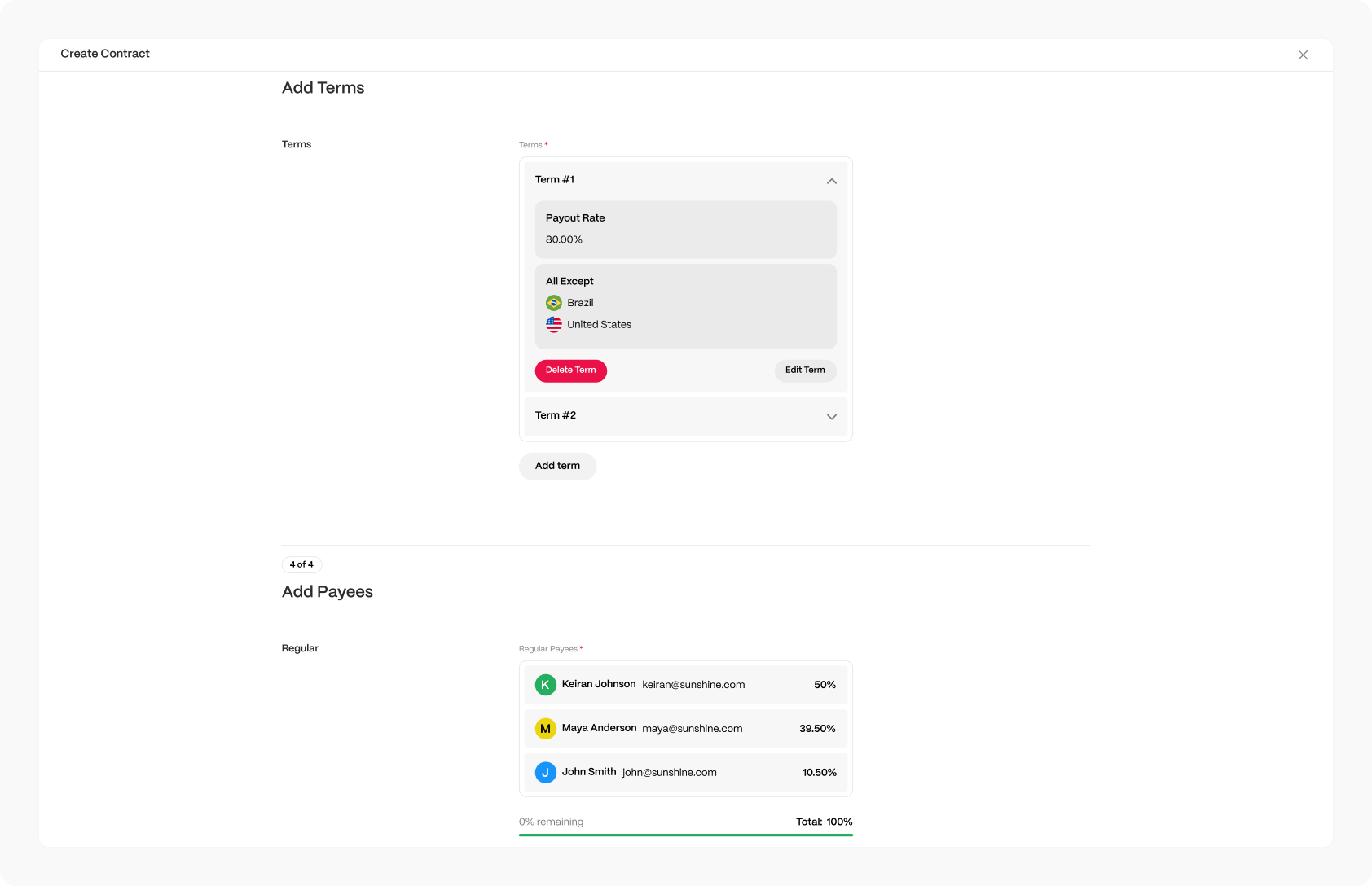
Hitskope allows you to create contracts for YouTube channels that define revenue splits by territory to your payees. This feature enables precise and compliant revenue management tailored to your needs.
Setting Up a New Contract
- Navigate to Rights → Contracts.
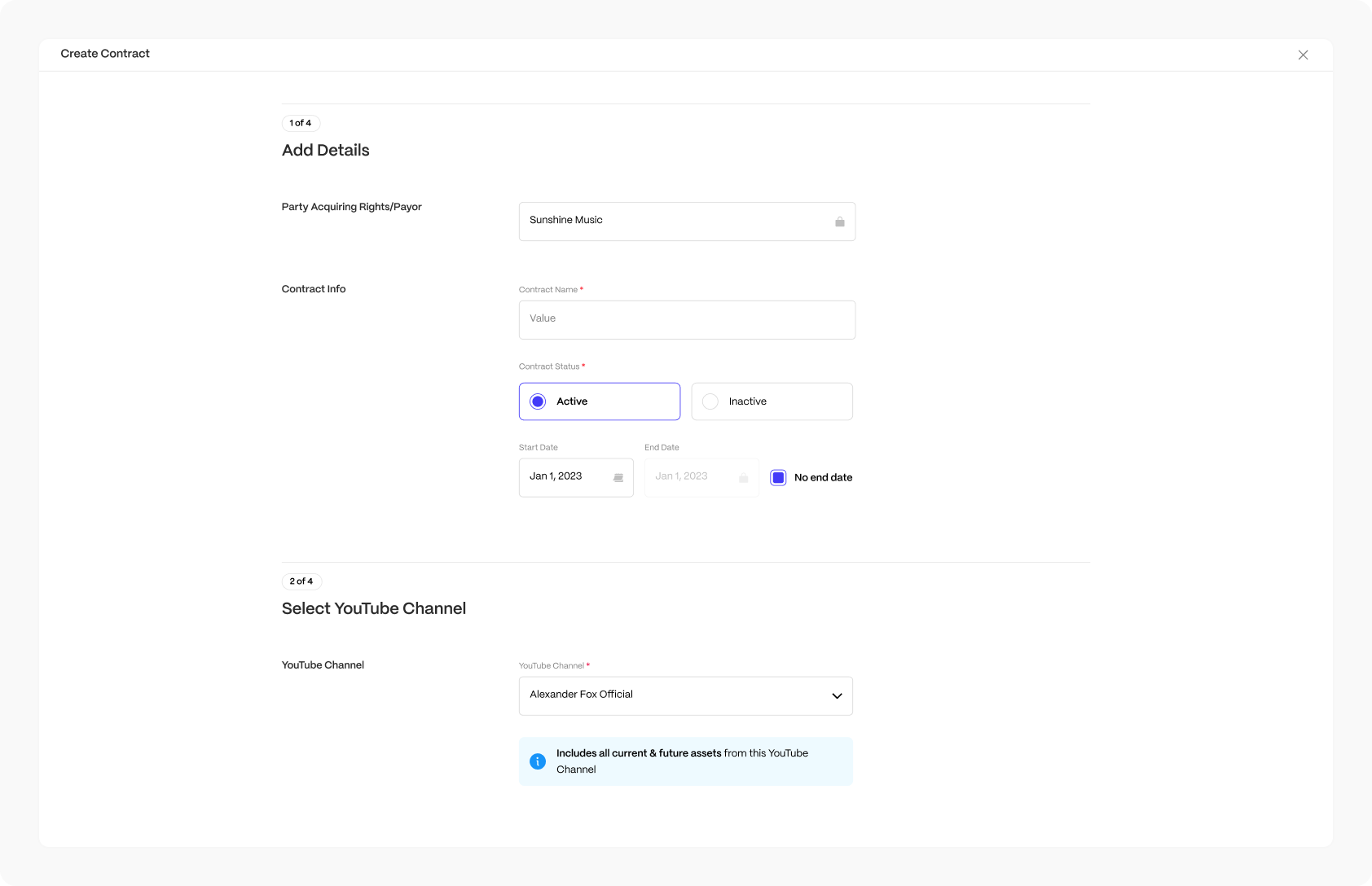
- Click New Contract and select to create a contract for YouTube Channel Revenue.
- Set up the contract details and select the YouTube Channel to include revenue from.
Assigning Territories & Payees
- Specify territories and payout rate to be applied to the contract.
- Add multiple payees, defining their respective revenue percentages.
Review & Create Your Contract
- Ensure all inputs are correct and click to create your contract when ready.
FAQs
Can I use this feature if I manage my own MCN?
Yes. You can manually upload revenue reports while still benefiting from Hitskope's centralized workflows for efficient financial management.
What types of revenue does this feature support?
Currently, this feature covers all channel revenue except for transaction revenue (such as Super Stickers/Chat/Thanks, memberships, gifting and BrandConnect). Support for transaction revenue will be added shortly.
Will this feature support YouTube Shorts?
Yes. YouTube Shorts are imported along with all other videos. However, they are not yet visually distinct in the interface—you can identify them by their thumbnails.
When will advanced analytics be available?
Advanced analytics are currently in development and will be released in an upcoming update.
What level of visibility do artist accounts on the roster have?
Artist accounts will only have access to YouTube data and videos for the channels assigned to them.
What types of videos are imported?
Only public videos from a channel are imported. Unlisted and private videos are not included in the import process.